




How to Check Your Entire App Download History on Android
Ever wondered exactly which apps you’ve downloaded over the years, even the ones you uninstalled ages ago and can’t remember the name of? Android doesn’t keep a simple chronological log with exact timestamps for every install, but Google Play Store ties your entire app history to your Google account. That means you can pull up a complete list of every app you’ve ever downloaded, installed, or tried across any device signed into that account.
Here’s the most straightforward way to access your full download history directly on your Android phone or tablet.
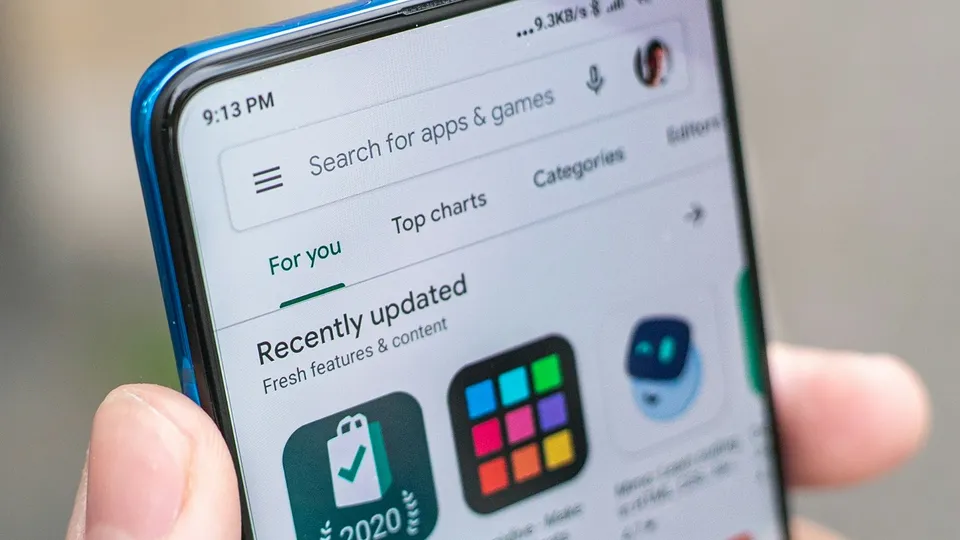
Step-by-Step: View Your App Library in the Play Store
- Open the Google Play Store app on your Android device.
- Tap your profile icon (the circular avatar) in the top-right corner.
- Select Manage apps & device from the menu.
- Tap the Manage tab at the top (next to “Overview”).
- You’ll now see a filter that probably says Installed or This device by default. Tap it.
- In the dropdown, choose Not installed.
This switches the view to show every app you’ve previously downloaded and installed on any device linked to your Google account, but no longer have on this phone.
You can scroll through the full list, search by app name, or filter further (for example, by “Games” or “Apps”). Tapping any app in the list lets you quickly reinstall it if you want.
To see only what’s currently on your device, switch back to Installed.
Pro tip: The list is sorted alphabetically by default. Tap the sort option (often labeled “Recently updated” or “Name”) to reorder it by recency if available in your version of the Play Store.
On the Web (Easier for Browsing a Huge History)
If you have hundreds of apps or prefer a bigger screen:
- Go to play.google.com/apps in any web browser and sign in with the same Google account.
- You’ll see your full library of apps associated with the account.
- You can filter by device or view everything at once.
This web view often feels cleaner for searching old titles you vaguely remember.
For Purchase and Order History (Paid Apps, In-App Purchases)
If you’re looking specifically for paid downloads or transactions:
- In the Play Store app, tap your profile icon.
- Go to Payments & subscriptions > Budget & order history.
- Here you’ll see a list of purchases with dates, useful if you want to know exactly when you bought or downloaded something that cost money.
Free apps won’t always appear with precise dates here, but the main library method above covers them.
Limitations and Extra Options
- No exact install dates for everything: The Play Store library shows what you’ve downloaded but doesn’t always display the precise date you first installed each app. For that level of detail, you can request your data via Google Takeout (takeout.google.com), selecting Google Play Store — it exports JSON files with more granular history, though it’s technical to parse.
- Multiple accounts: Make sure you’re signed into the correct Google account. Switch accounts in the Play Store if needed.
- Third-party apps or file managers: Some apps claim to show install history, but they’re unnecessary and can raise privacy risks. Stick to the official Play Store method for accuracy and security.
- APKs outside Play Store: If you sideloaded apps (from websites or other stores), they won’t appear in this history. Android itself doesn’t maintain a long-term log of sideloading.
This feature has remained largely consistent across recent Android versions and Play Store updates, making it reliable whether you’re on a new Pixel, Samsung Galaxy, or older device.
Why it matters: Cleaning up old apps, moving to a new phone, or just satisfying curiosity, your download history is all there, tied neatly to your Google account. No need to dig through settings or download extra tools.
Next time you reset your phone or switch devices, you’ll know exactly where to look to restore your old favorites without guessing.


 English
  简体中文
简体中文  Čeština
  Deutsch (Sie)
  Français


